---
title: Editor
description: Use the tld visual editor to place elements, connect relationships,
organize views, and drill into nested architecture detail.
editUrl: true
head: []
template: doc
sidebar:
hidden: false
attrs: {}
pagefind: true
draft: false
---
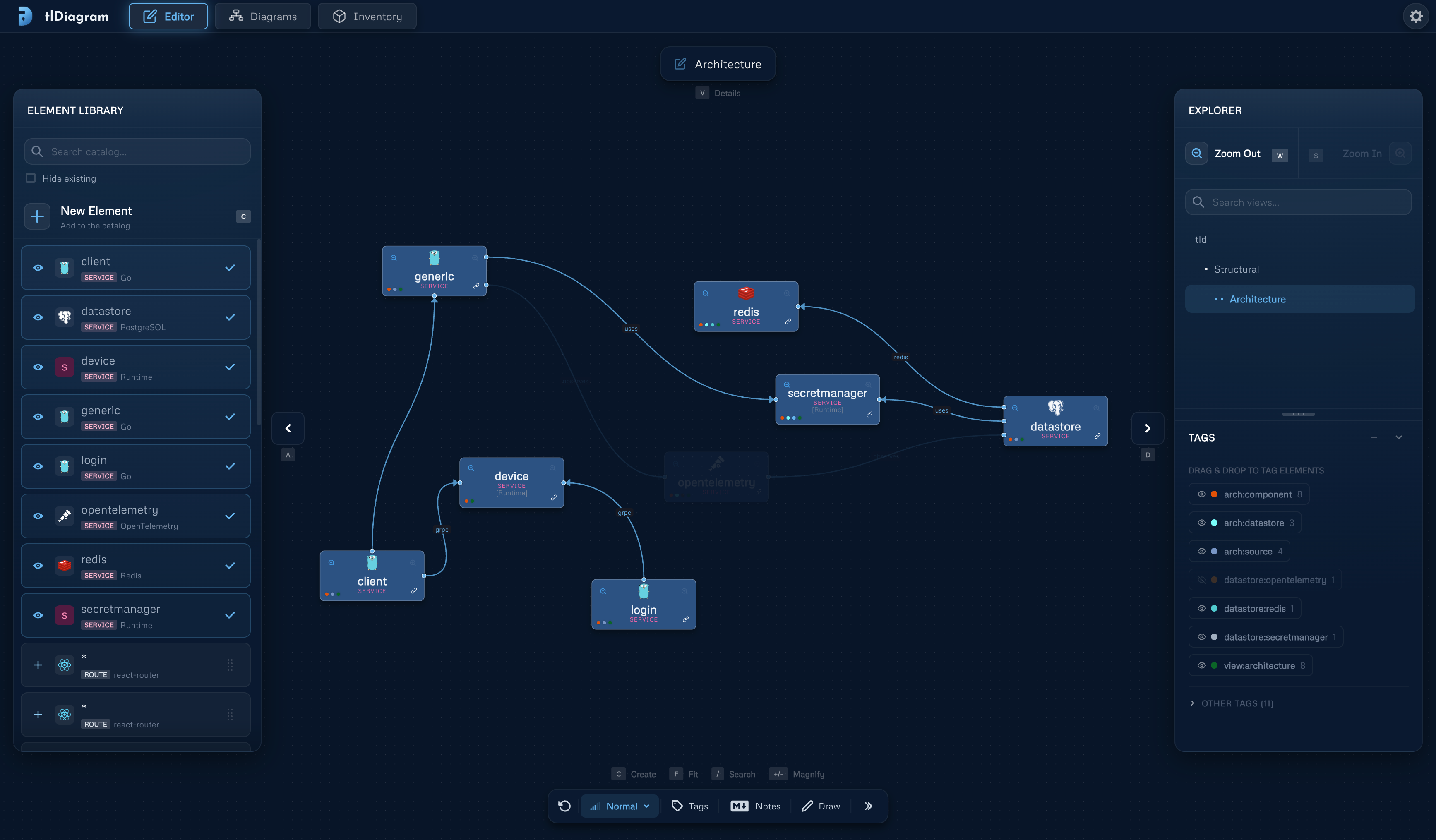
The editor is the interactive workspace for a local `tld serve` session. It uses the same element, view, placement, and connector model as the CLI, so visual edits and diagram-as-code workflows stay aligned.
## Objects
**Elements** are reusable architecture objects such as services, databases, queues, people, and external systems. You can place an element in multiple views without duplication, and update its name, description, technology, and tags in one place.
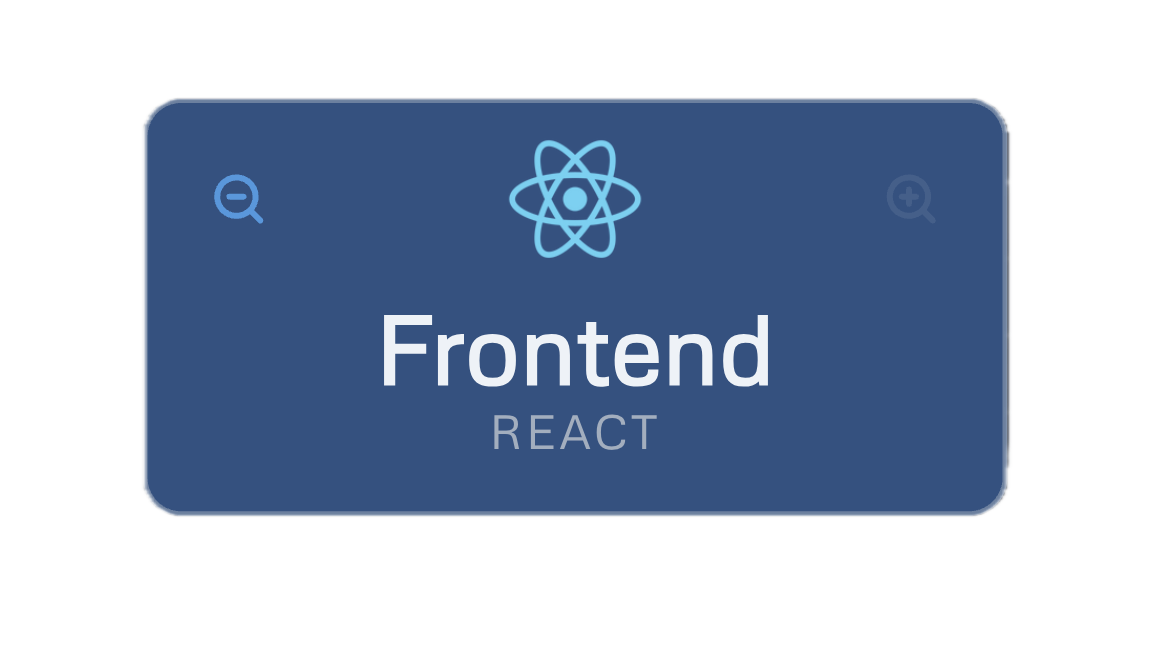 Elements can be associated with known technologies to make recognition easier. Top left zoom-out icon navigates to its parent's view. Top right zoom-in icon navigates to the view owned by the element, use it too add details to the element's view, without cluttering up its big picture context.
**Views** are canvases owned by elements. Placing children under an element creates a drill-down view for that element.
**Connectors** describe relationships between elements in a view, including labels, direction, relationship type, and route style.
Connectors can be off-view. This means they can connect elements that aren't placed together in any view, which is useful for showing important relationships without forcing you to place elements in the same view. The off-view element is represented beyond a dashed outline encompassing the current view.
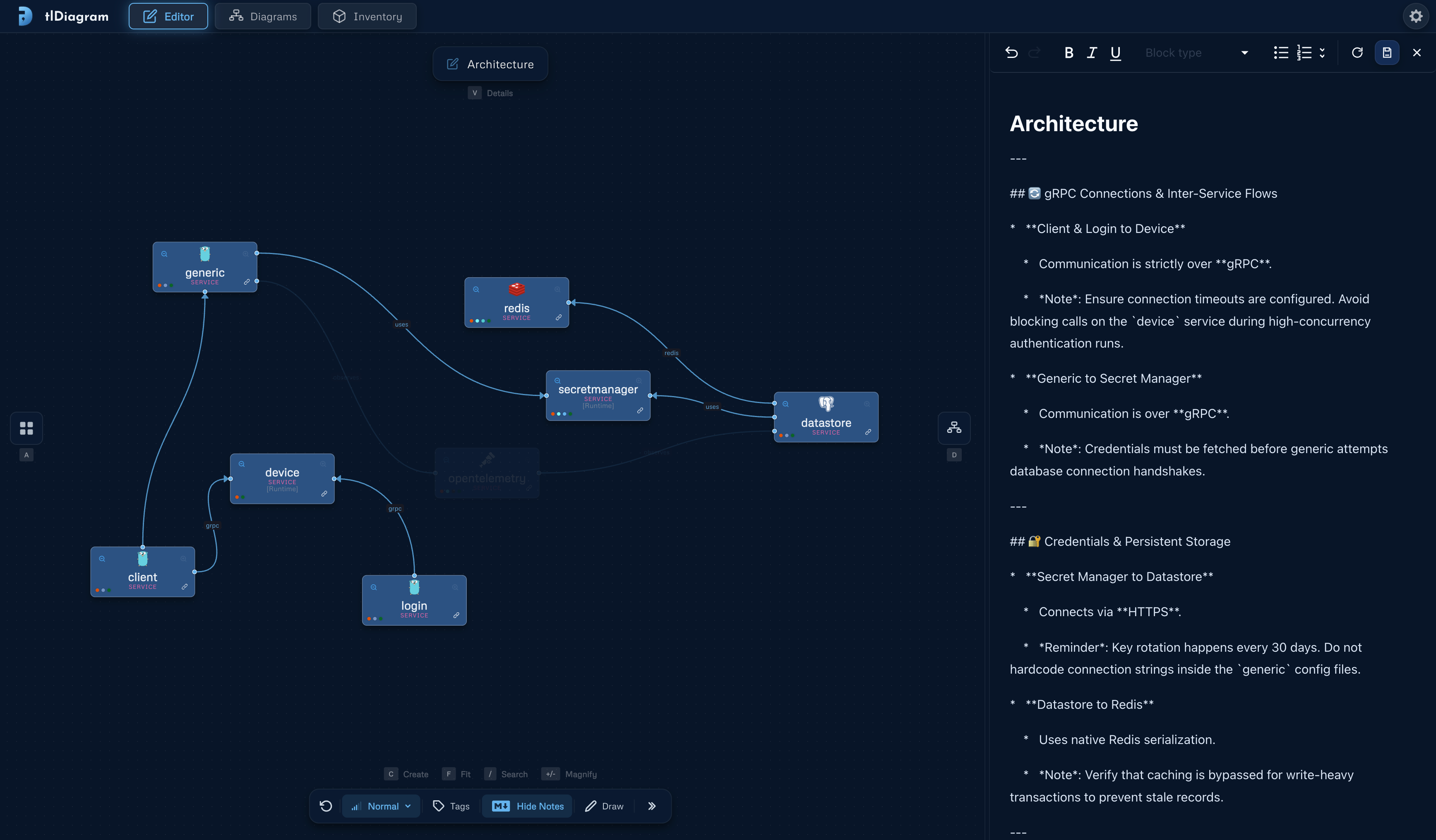
**Markdown notes** attach extra context to a view when a diagram needs more explanation than labels can carry. You can use an
existing markdown file and link it or create a new one in the editor.
## Tags
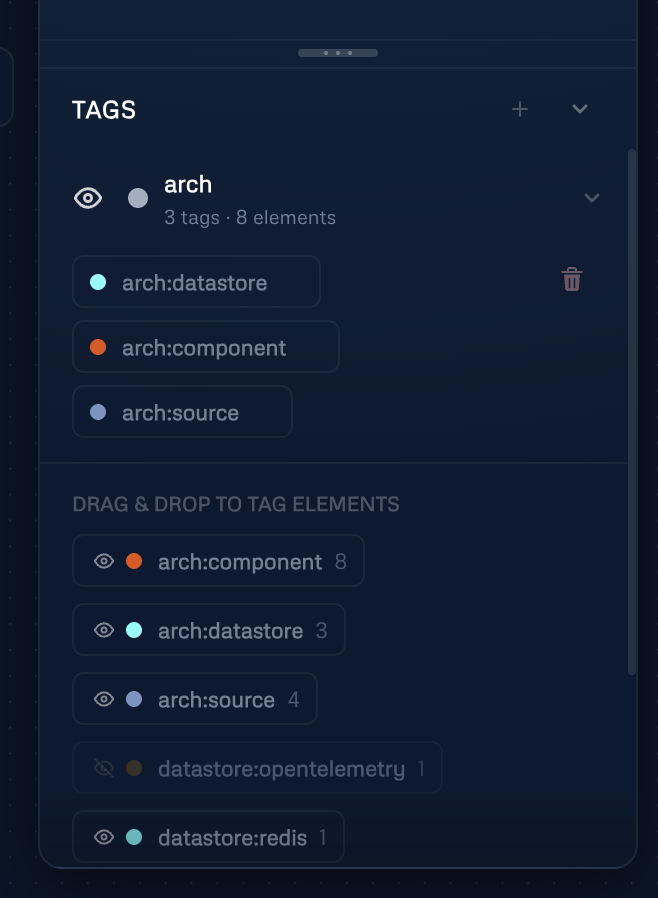
**Tags** are arbitrary strings that you can use to group and filter elements. Drag and drop on to elements to add tags, or click the tag icon on an element to edit its tags. You can group tags by dragging one on top of another in the tag panel.
Elements can be associated with known technologies to make recognition easier. Top left zoom-out icon navigates to its parent's view. Top right zoom-in icon navigates to the view owned by the element, use it too add details to the element's view, without cluttering up its big picture context.
**Views** are canvases owned by elements. Placing children under an element creates a drill-down view for that element.
**Connectors** describe relationships between elements in a view, including labels, direction, relationship type, and route style.
Connectors can be off-view. This means they can connect elements that aren't placed together in any view, which is useful for showing important relationships without forcing you to place elements in the same view. The off-view element is represented beyond a dashed outline encompassing the current view.
**Markdown notes** attach extra context to a view when a diagram needs more explanation than labels can carry. You can use an
existing markdown file and link it or create a new one in the editor.

## Tags
**Tags** are arbitrary strings that you can use to group and filter elements. Drag and drop on to elements to add tags, or click the tag icon on an element to edit its tags. You can group tags by dragging one on top of another in the tag panel.
 ## Nested Views
Any element can own a child view. This is how `tld` models C4-style progressive disclosure: start at the system view, then enter a service, subsystem, or component when the reader needs more detail.
## Authoring Tips
Start with an overview of your system. Then, for each element that needs more detail, create a child view and place its internal structure there. Use cut/copy/paste to move elements between view if you think they don't belong in that context.
## Shortcuts
Keyboard shortcuts work when focus is on the editor canvas, not inside a text input or form field.
### Canvas
| Shortcut | Action |
|---|---|
| `C` | Create an element at the cursor, or near the center of the canvas. |
| `E` | Start a connector from the selected element or selected elements. |
| `F` | Fit the current view to the viewport. |
| `G` | Toggle snap to grid. |
| `/` | Open the element library and focus search. |
| `+` or `=` | Zoom in. |
| `-` | Zoom out. |
| `Tab` | Select the next visible element. |
| `Shift` + `Tab` | Select the previous visible element. |
| `Ctrl`/`Cmd` + `A` | Select all visible elements. |
| `Ctrl`/`Cmd` + `C` | Copy the selected elements and connectors. |
| `Ctrl`/`Cmd` + `X` | Cut the selected elements and connectors. |
| `Ctrl`/`Cmd` + `V` | Paste copied editor content, or import Mermaid code from the clipboard. |
| `Delete` or `Backspace` | Remove the selected element from the current view, or delete the selected connector. |
| `R` | Remove the selected element from the current view. |
| `Shift` + `R` | Permanently delete the selected element everywhere. |
| `Escape` | Clear selection and cancel active connector, reconnect, or pending element actions. |
### Panels and Navigation
| Shortcut | Action |
|---|---|
| `A` | Toggle the element library. |
| `D` | Toggle the view explorer. |
| `M` | Toggle view markdown notes. |
| `V` | Open view details. |
| `W` | Navigate to the parent view. |
| `S` | Navigate to the first child view. |
| `Shift` + `W` | Create and navigate to a parent-layer view from the first incoming link. |
| `Shift` + `S` | Create and navigate to a child view for the first element in the current view. |
| `Ctrl`/`Cmd` + `Enter` | Save or close the element and connector edit panels. |
| `T` | Focus technology search in the element panel. |
### Drawing Mode
| Shortcut | Action |
|---|---|
| `P` | Select the pencil tool. |
| `E` | Select the eraser tool. |
| `T` | Select the text tool. |
| `V` | Select the drawing selection tool. |
| `Ctrl`/`Cmd` + `Z` | Undo the last drawing action. |
| `Ctrl`/`Cmd` + `Shift` + `Z` | Redo the last drawing action. |
| `Delete` or `Backspace` | Delete the selected drawing path. |
## Nested Views
Any element can own a child view. This is how `tld` models C4-style progressive disclosure: start at the system view, then enter a service, subsystem, or component when the reader needs more detail.
## Authoring Tips
Start with an overview of your system. Then, for each element that needs more detail, create a child view and place its internal structure there. Use cut/copy/paste to move elements between view if you think they don't belong in that context.
## Shortcuts
Keyboard shortcuts work when focus is on the editor canvas, not inside a text input or form field.
### Canvas
| Shortcut | Action |
|---|---|
| `C` | Create an element at the cursor, or near the center of the canvas. |
| `E` | Start a connector from the selected element or selected elements. |
| `F` | Fit the current view to the viewport. |
| `G` | Toggle snap to grid. |
| `/` | Open the element library and focus search. |
| `+` or `=` | Zoom in. |
| `-` | Zoom out. |
| `Tab` | Select the next visible element. |
| `Shift` + `Tab` | Select the previous visible element. |
| `Ctrl`/`Cmd` + `A` | Select all visible elements. |
| `Ctrl`/`Cmd` + `C` | Copy the selected elements and connectors. |
| `Ctrl`/`Cmd` + `X` | Cut the selected elements and connectors. |
| `Ctrl`/`Cmd` + `V` | Paste copied editor content, or import Mermaid code from the clipboard. |
| `Delete` or `Backspace` | Remove the selected element from the current view, or delete the selected connector. |
| `R` | Remove the selected element from the current view. |
| `Shift` + `R` | Permanently delete the selected element everywhere. |
| `Escape` | Clear selection and cancel active connector, reconnect, or pending element actions. |
### Panels and Navigation
| Shortcut | Action |
|---|---|
| `A` | Toggle the element library. |
| `D` | Toggle the view explorer. |
| `M` | Toggle view markdown notes. |
| `V` | Open view details. |
| `W` | Navigate to the parent view. |
| `S` | Navigate to the first child view. |
| `Shift` + `W` | Create and navigate to a parent-layer view from the first incoming link. |
| `Shift` + `S` | Create and navigate to a child view for the first element in the current view. |
| `Ctrl`/`Cmd` + `Enter` | Save or close the element and connector edit panels. |
| `T` | Focus technology search in the element panel. |
### Drawing Mode
| Shortcut | Action |
|---|---|
| `P` | Select the pencil tool. |
| `E` | Select the eraser tool. |
| `T` | Select the text tool. |
| `V` | Select the drawing selection tool. |
| `Ctrl`/`Cmd` + `Z` | Undo the last drawing action. |
| `Ctrl`/`Cmd` + `Shift` + `Z` | Redo the last drawing action. |
| `Delete` or `Backspace` | Delete the selected drawing path. |